11.1 Integrations
Configure the integration channels under separate tabs: API Keys, Webhook, Telegram, Axim Pay, and Phonepay.
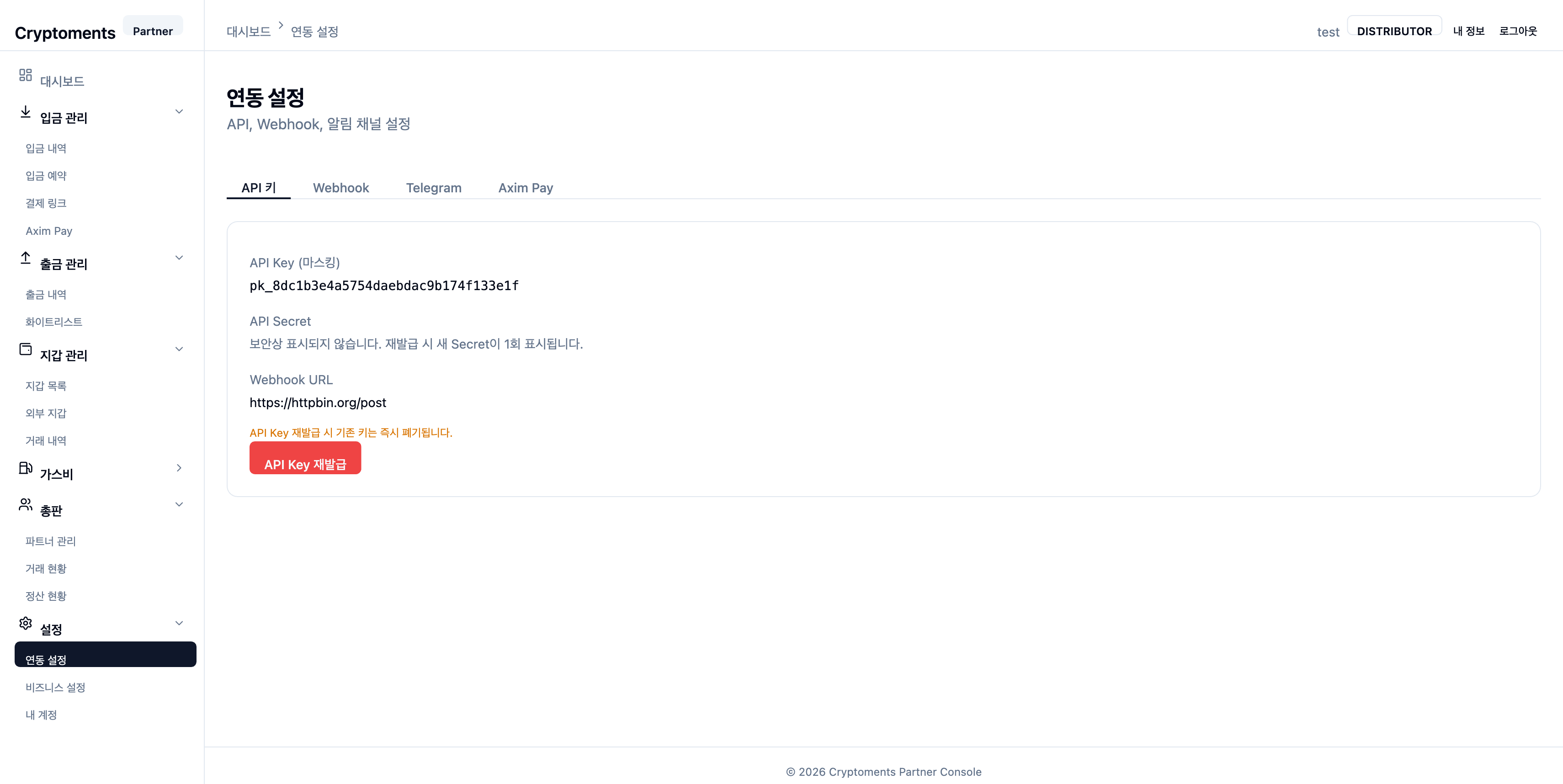
Integrations — settings under the API Keys, Webhook, Telegram, Axim Pay, and Phonepay tabs
API Keys
View your partner API Key and Secret under the API Keys tab.
🔒
Security warning: Never expose your API Key and Secret. The Secret is shown only at issuance time and cannot be retrieved afterwards.
Webhook Settings
Set the callback URL for deposit/withdrawal events under the Webhook tab.
Events such as deposit confirmation and withdrawal completion are delivered in real time to the configured URL. This is required when integrating via the API.
✅
Test delivery: After setting the Webhook URL, use the "Send Test" button to verify your endpoint receives events correctly.
Telegram Notifications
Configure the Telegram bot notifications under the Telegram tab.
1
Scan the QR or open the link
On the Telegram tab, scan the displayed QR code with the Telegram mobile app, or switch to Link and tap @CryptomentsBot. Use "Reissue token" if the code expired.
2
Complete the connection in Telegram
The bot opens and links automatically. The console polls and updates the state to connected (Chat ID) once done — no manual command needed.
3
Toggle notifications and test
Use the ON / OFF switch to pause or resume alerts, and Send Test to confirm delivery. Disconnect unlinks the bot (OTP required for 2FA partners).
Supported notification types:
| Notification type | Description |
|---|
| Deposit detected (DEPOSIT_DETECTED) | When a deposit TX is detected on-chain (awaiting block confirmation) |
| Deposit confirmed (DEPOSIT_CONFIRMED) | When the deposit is confirmed on-chain |
| Large deposit (LARGE_DEPOSIT) | When a deposit exceeds the configured threshold |
| Withdrawal requested (WITHDRAWAL_REQUESTED) | When a new withdrawal request is received |
| Withdrawal approved (WITHDRAWAL_APPROVED) | When a withdrawal request is approved |
| Withdrawal rejected (WITHDRAWAL_REJECTED) | When a withdrawal request is rejected by an administrator |
| Withdrawal completed (WITHDRAWAL_CONFIRMED) | When a withdrawal is confirmed on-chain |
| Withdrawal failed (WITHDRAWAL_FAILED) | When an error occurs during withdrawal processing |
| Withdrawal cancelled (WITHDRAWAL_CANCELLED) | When a withdrawal request is cancelled |
⚠️
Operational recommendation: For stable operation and fast incident response, keep Telegram bot notifications ON. Insufficient-balance and low-gas alerts in particular are essential to prevent withdrawal-service outages.
Axim Pay
Configure the Axim Pay payment integration under the Axim Pay tab. Shown only to partners with Axim Pay enabled.
Phonepay
Enable KRW deposits via BanqPipe under the Phonepay tab. Enter the BanqPipe API Key (bpk_...) and save — Phonepay activates and its callback URL is registered to BanqPipe automatically. When active, the tab shows the masked API key and the callback URL. Deactivate deletes the stored API key (you must re-enter it to use Phonepay again).
11.2 Business Settings
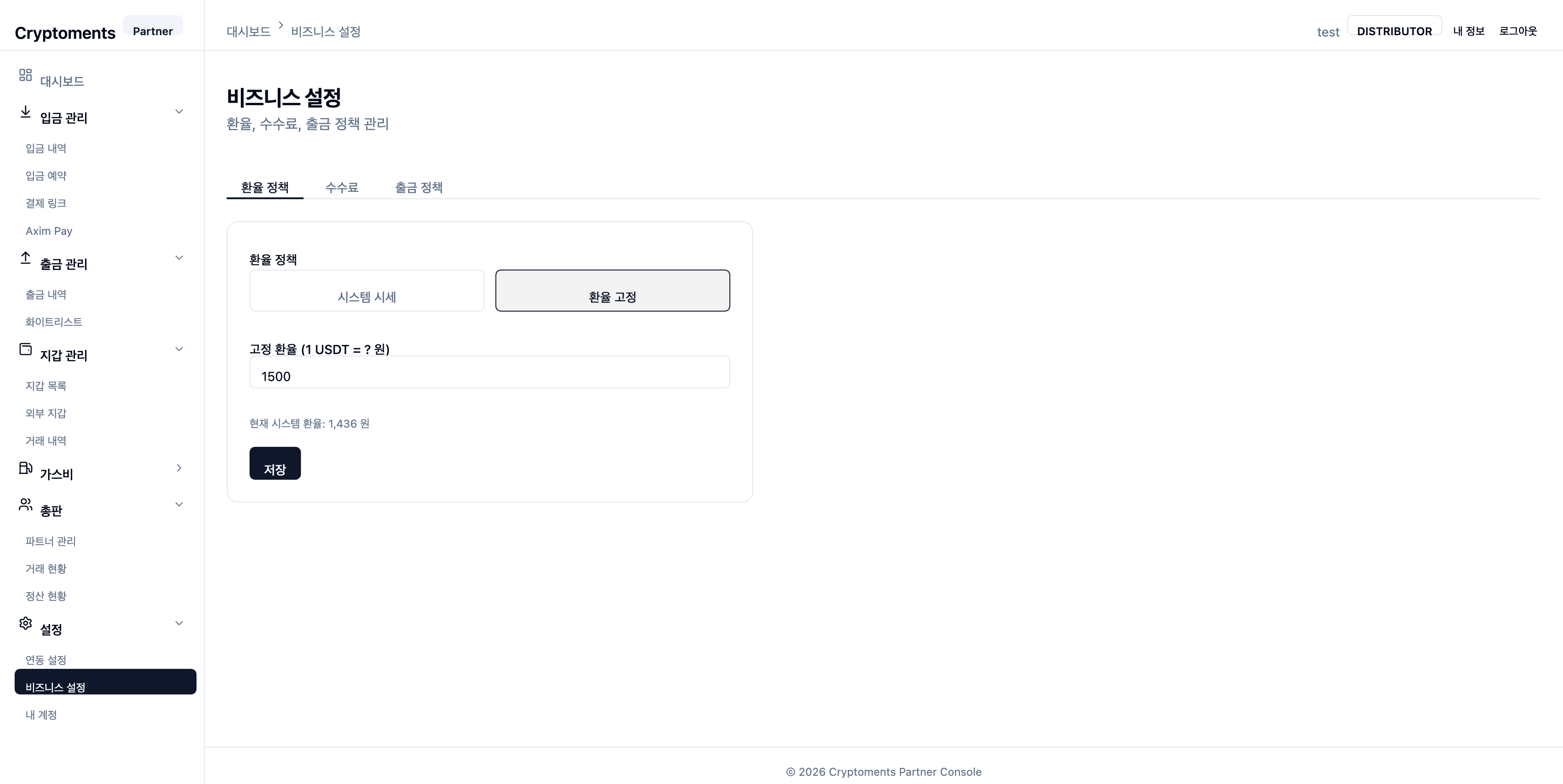
Configured under separate tabs: FX Policy, Fees, Withdrawal Policy, and P2P.
FX Policy
Choose how the KRW exchange rate is applied under the FX Policy tab.
- System rate — inherit the live system exchange rate automatically.
- Fixed rate — set your own rate (1 USDT = ? KRW).
The current system rate is shown for reference. Saving requires OTP.
Fee Settings
Under the Fees tab you can see the inherited limits — parent fee rate, cumulative minimum fee rate, and maximum fee cap (read-only) — and set your own deposit fee rate within the min~max range. Setting it to 0 means you do not accept direct deposits. Saving requires OTP.
Withdrawal Policy
Configure withdrawal approval behavior under the Withdrawal Policy tab.
| Mode | Description |
|---|
| Auto approval | All withdrawal requests are processed automatically. |
| Conditional manual approval | Only withdrawals above the configured USDT threshold require manual approval. |
💡
Security recommendation: We strongly recommend "Conditional manual approval" mode to prevent large-withdrawal incidents.
P2P
Under the P2P tab, the P2P service on/off and the P2P fee rate (borne by the buyer) are read-only — set by your distributor / operator. Here you register your service account: one partner bank account used to cover the remaining amount when a P2P order can't be fully filled by individual withdrawers. Registering it signs in with your bank's quick-check login (which lets the system confirm incoming deposits automatically) and requires OTP; the tab then shows the auto deposit-confirmation status and when it expires.
11.3 My Account
Basic Info
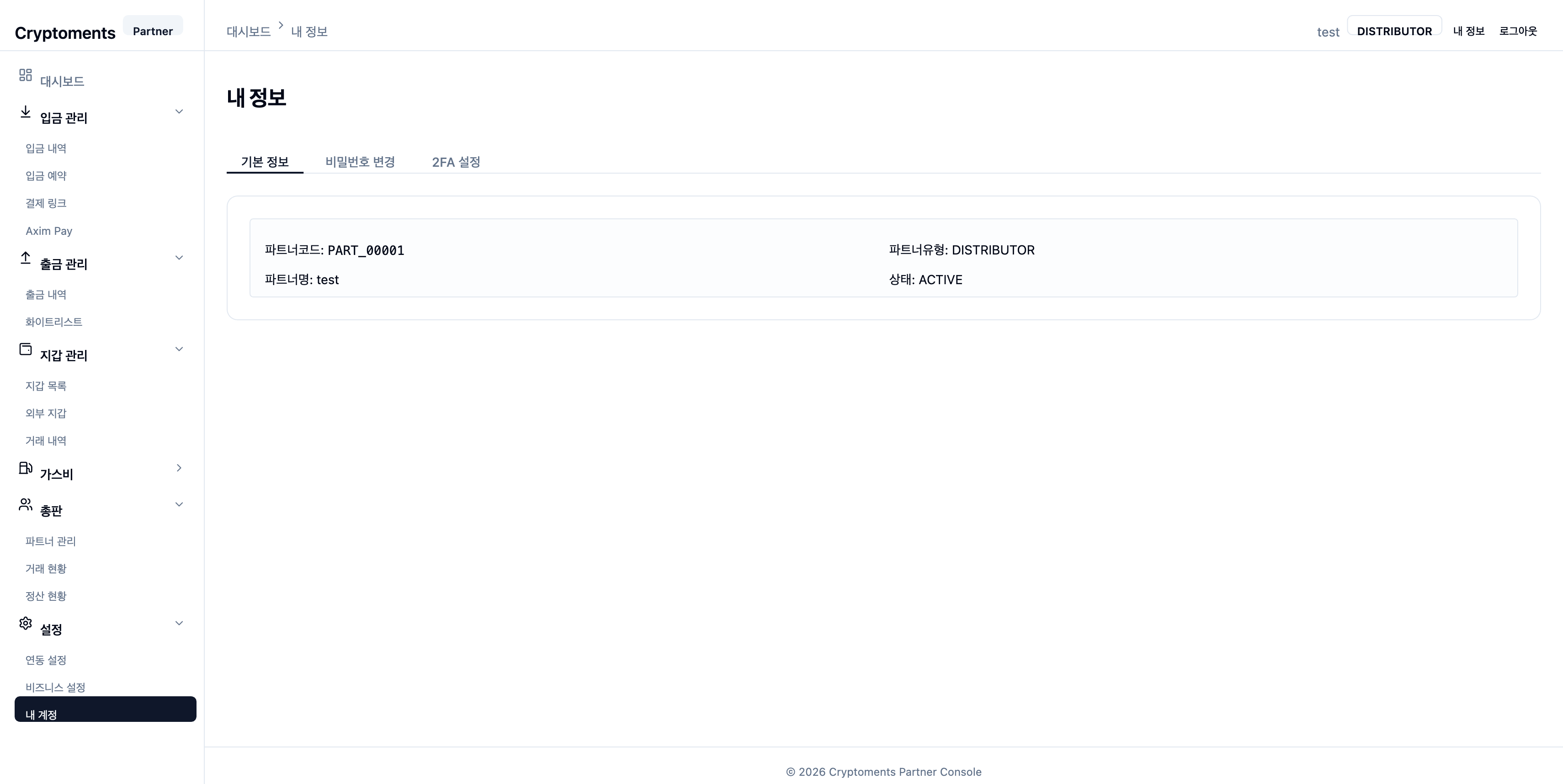
View basic account info — partner code, type (merchant/distributor), partner name, status, and so on.
Change Password
Change your password by entering the current password and a new one. Passwords must contain 8+ characters, mixing letters, digits, and special characters. OTP authentication is required.
2FA Settings
Manage enable/disable of 2FA (OTP). See 2.2 2FA Setup for detailed setup steps.